Home  •  DisplayFusion Online  •  Support  •  View this site in English 以简体中文浏览此网站 以正體中文瀏覽此網站
  •  
Binary Fortress Software WallpaperFusion LogFusion ClipboardFusion FileSeek Notepad Replacer
DisplayFusion: Multiple Monitors Made Easy!
 

Customizable Functions

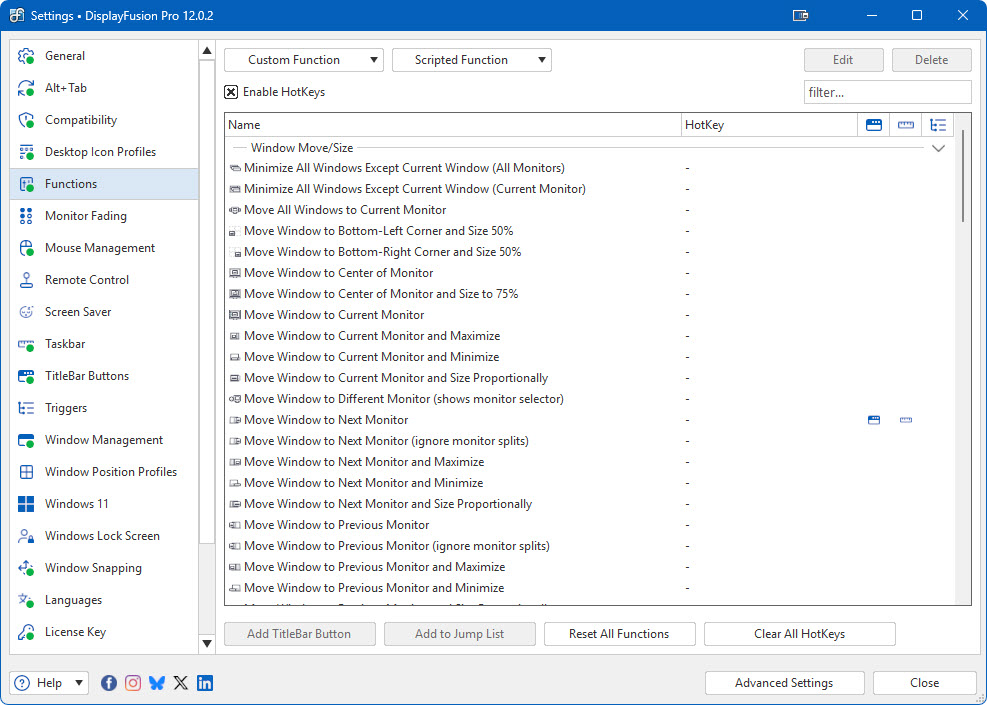
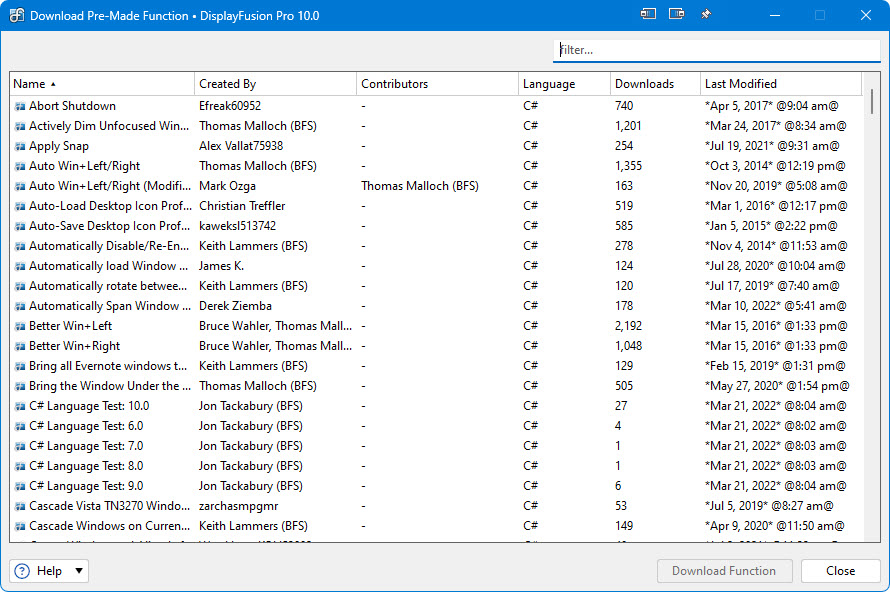
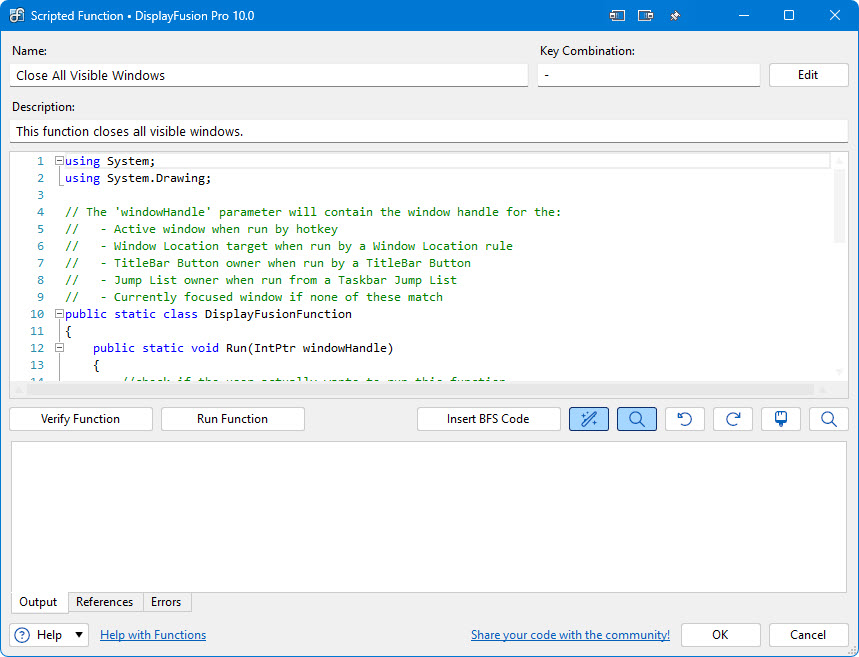
DisplayFusion comes bundled with over 30 pre-configured Functions, or you can create your own powerful custom Functions. Create Functions to load Wallpaper or Monitor Profiles, move windows around, change window opacity, toggle DisplayFusion features and much more.

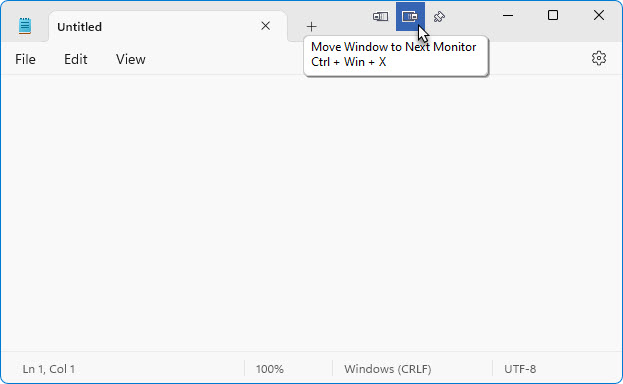
Any Function, including custom Functions that you've created, can be assigned to a TitleBar Button for easier access with the mouse, or to a keyboard shortcut for keyboard power users. Functions can also be assigned to the Jump List menus on the DisplayFusion Multi-Monitor Taskbars, allowing them to be run even on applications that are minimized.

Customizable Functions

Window Move/Size

  • Minimize All Windows Except Current Window (All Monitors)
  • Minimize All Windows Except Current Window (Current Monitor)
  • Move All Windows to Current Monitor
  • Move Window to Bottom-Left Corner and Size 50%
  • Move Window to Bottom-Right Corner and Size 50%
  • Move Window to Centre of Monitor
  • Move Window to Centre of Monitor and Size to 75%
  • Move Window to Current Monitor
  • Move Window to Current Monitor and Maximize
  • Move Window to Current Monitor and Minimize
  • Move Window to Current Monitor and Size Proportionally
  • Move Window to Different Monitor
  • Move Window to Next Monitor
  • Move Window to Next Monitor and Maximize
  • Move Window to Next Monitor and Minimize
  • Move Window to Next Monitor and Size Proportionally
  • Move Window to Previous Monitor
  • Move Window to Previous Monitor and Maximize
  • Move Window to Previous Monitor and Minimize
  • Move Window to Previous Monitor and Size Proportionally
  • Move Window to Top-Left Corner and Size 50%
  • Move Window to Top-Right Corner and Size 50%
  • Size and Move Window to Bottom Side of Monitor
  • Size and Move Window to Left Side of Monitor
  • Size and Move Window to Right Side of Monitor
  • Size and Move Window to Top Side of Monitor
  • Span Window Across all Monitors

Window Management

  • Highlight Window
  • Highlight Window: Disable All Highlights
  • Maximize Window
  • Minimize Window
  • Prevent Window Deactivation (keeps game windows focused)
  • Restore Window
  • Send Window to Back
  • Toggle Window Always on Top
  • Toggle Window Transparency

Wallpaper

  • Load Next Random Wallpaper Image
  • Load Wallpaper Profile
  • Toggle Freeze Current Wallpaper Images

Monitor Configuration

  • Load Monitor Profile
  • Load Next Monitor Profile (alphabetically)
  • Load Previous Monitor Profile (alphabetically)

Desktop Icons

  • Load Desktop Icon Profile

Mouse Cursor

  • Lock/Unlock Mouse Cursor to Current Focused Window
  • Lock/Unlock Mouse Cursor to Current Monitor

Mirroring

  • Mirror Monitor
  • Mirror Window

DisplayFusion Functions

  • Open DisplayFusion Desktop Wallpaper
  • Open DisplayFusion Monitor Configuration
  • Open DisplayFusion Settings
  • Toggle Key Combinations
  • Toggle Multi-Monitor Taskbar
  • Toggle TitleBar Buttons
  • Toggle Window Location

System Functions

  • Disable Screen Saver
  • Enable Screen Saver
  • Lock Desktop
  • Start Screen Saver

Screenshots

DisplayFusion TitleBar Buttons
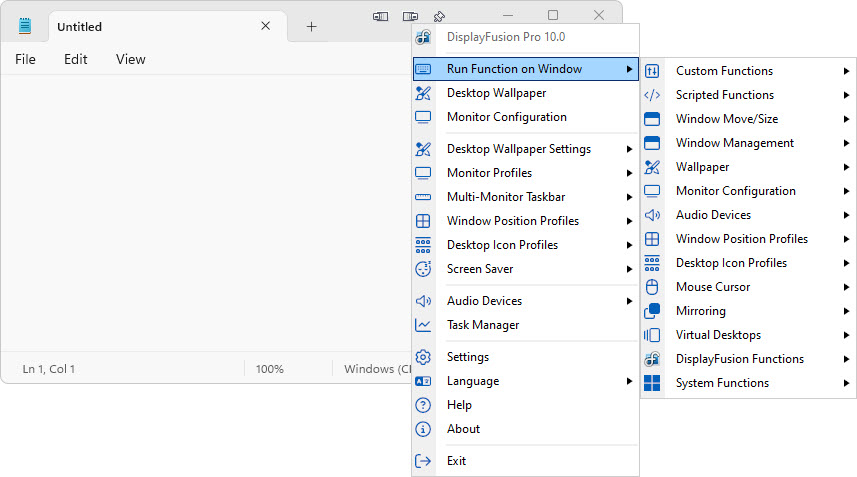
Run any Function from the<br/>TitleBar Button Context Menu
Run any Function from the
TitleBar Button Context Menu
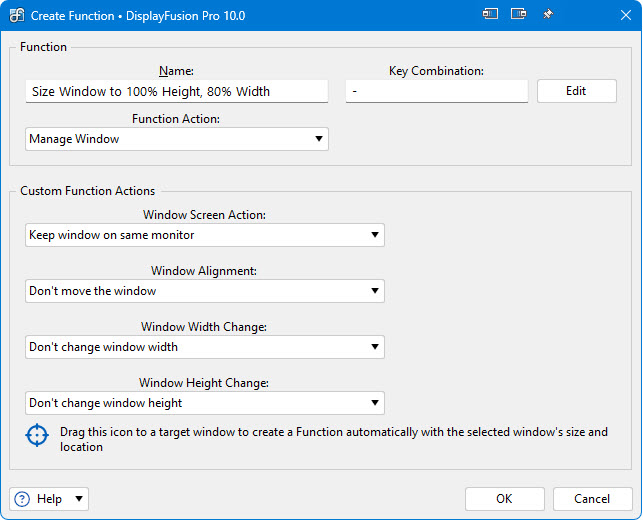
Adding/Editing a Custom Function
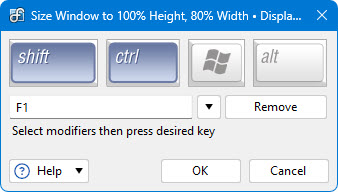
Shortcut Key Combination Editor
Settings > Functions Tab

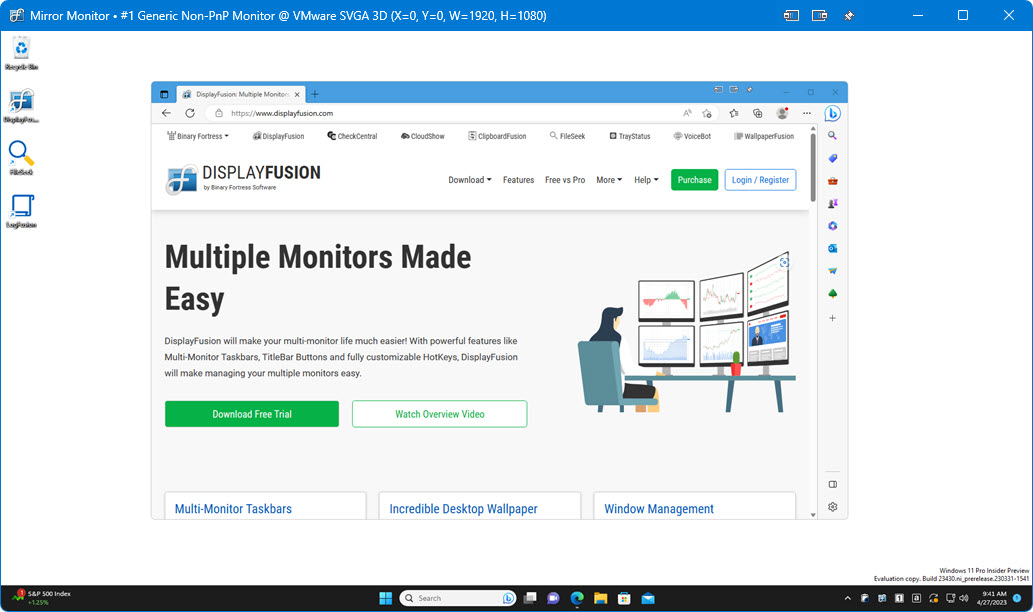
Output Window Created by<br/>the "Mirror Monitor" Function
Output Window Created by
the "Mirror Monitor" Function
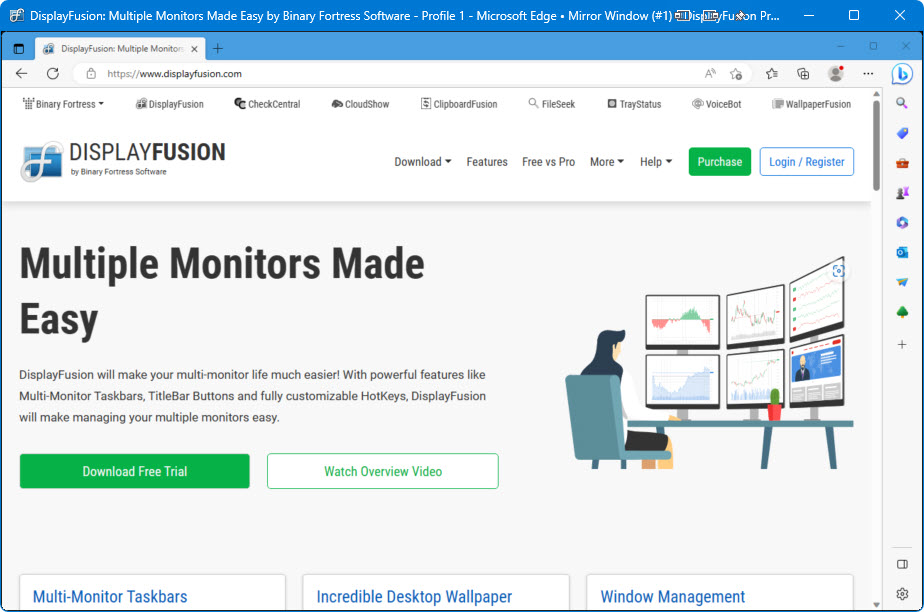
Output Window Created by<br/>the "Mirror Window" Function
Output Window Created by
the "Mirror Window" Function
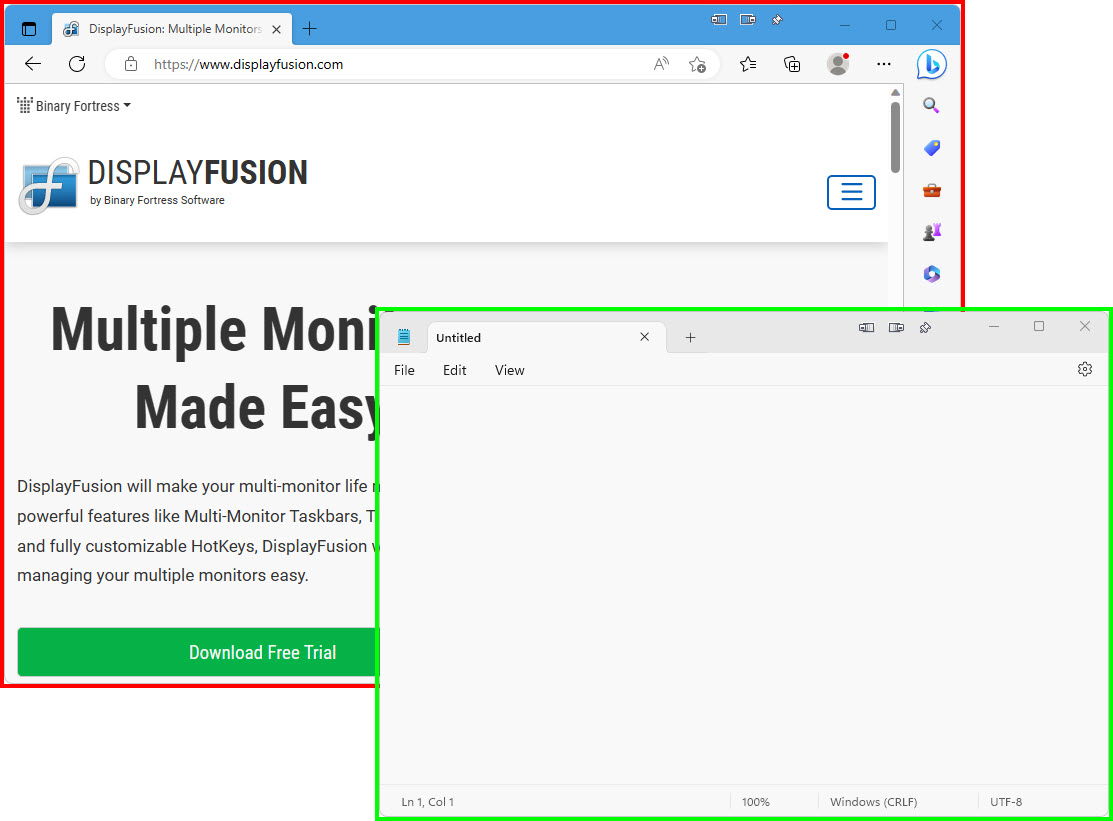
Window Highlight Function