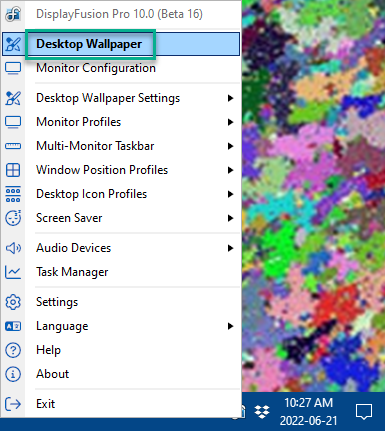
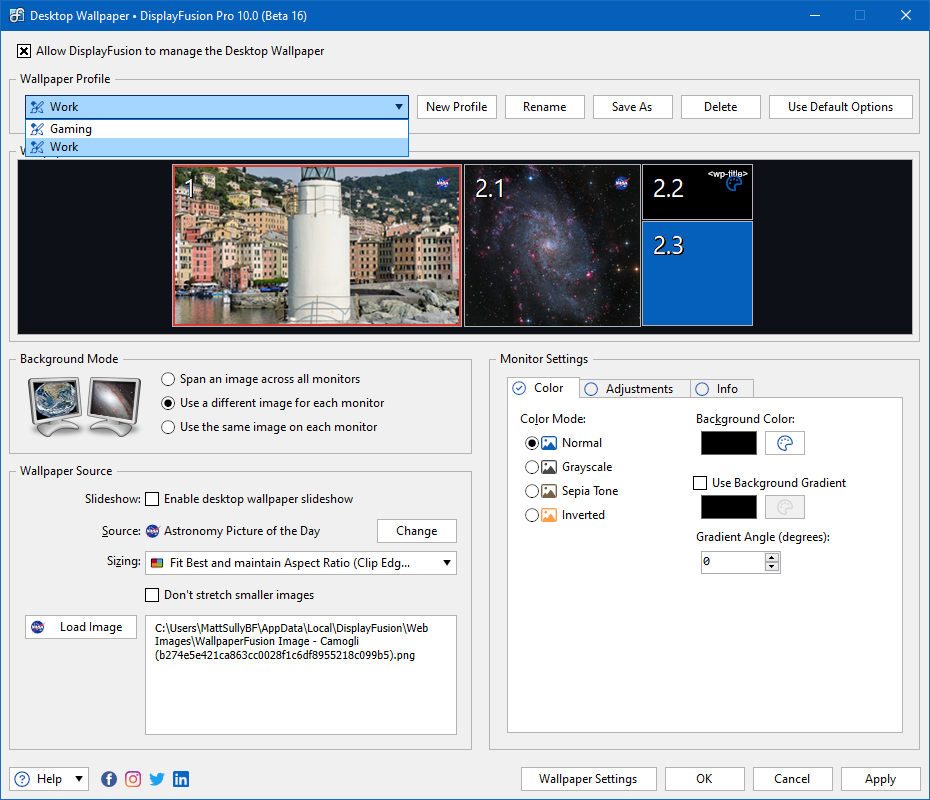
Create a Wallpaper Profile for each wallpaper setup that you'd like to switch between automatically.
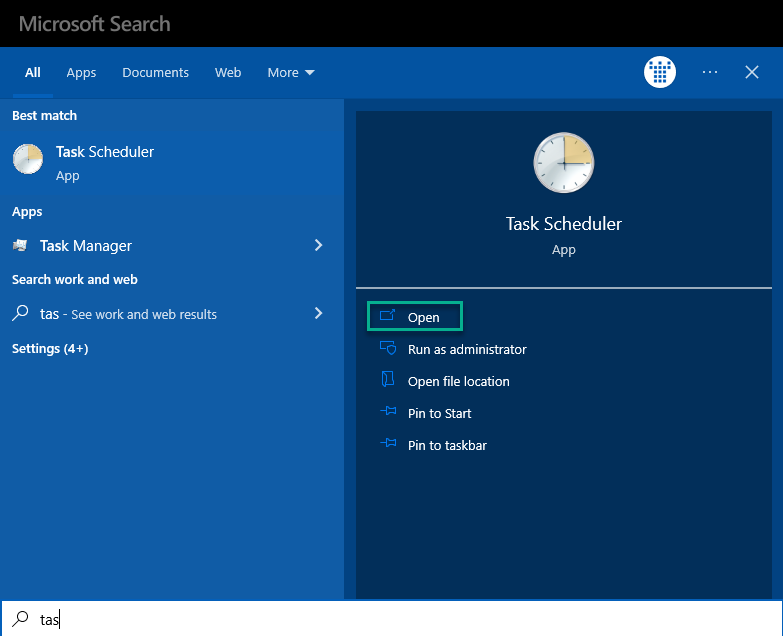
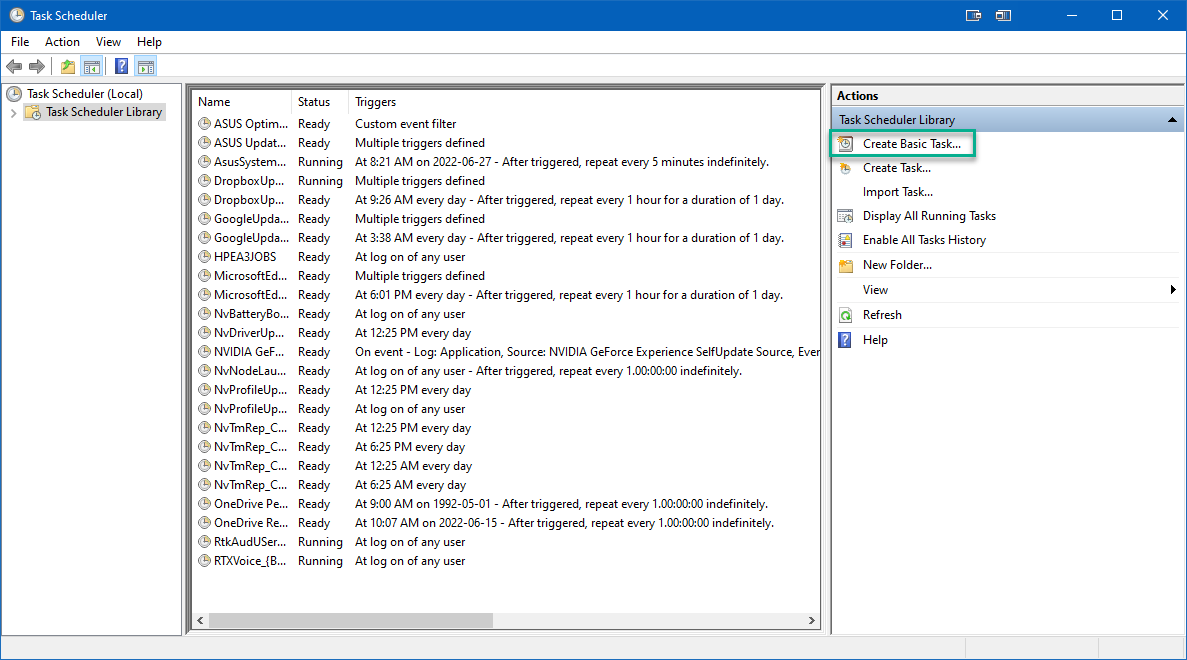
Open the Windows Task Scheduler (Start > All Programs > Accessories > System Tools > Task Scheduler) and select "Create a Basic Task" from the right pane.
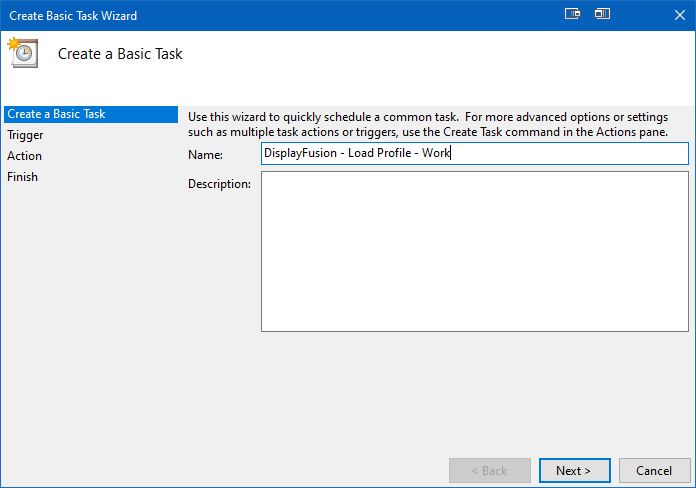
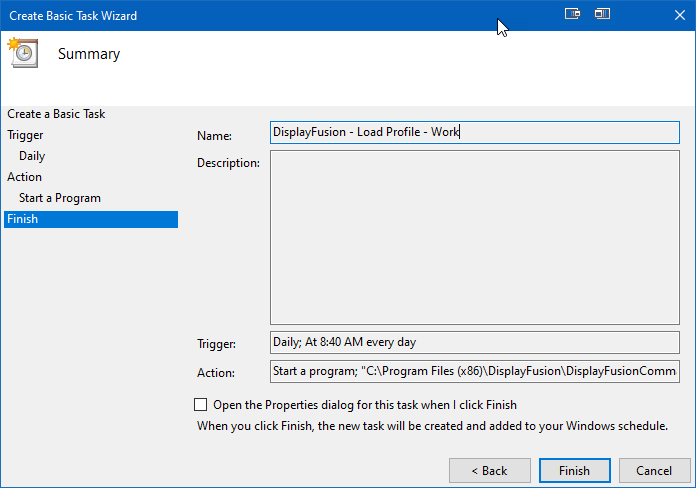
In the wizard, enter a name for the task, then click Next. For example: "DisplayFusion - Load Profile - Sunrise"
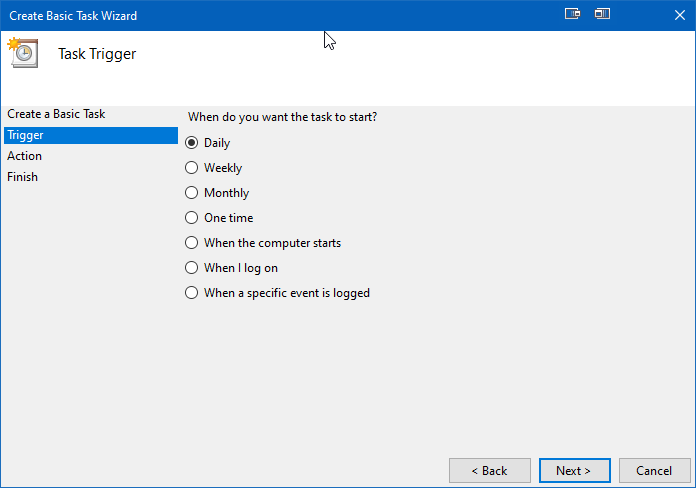
Select when you want the task to run, then click Next. For example: If you want to load the Sunrise profile every morning, choose "Daily."
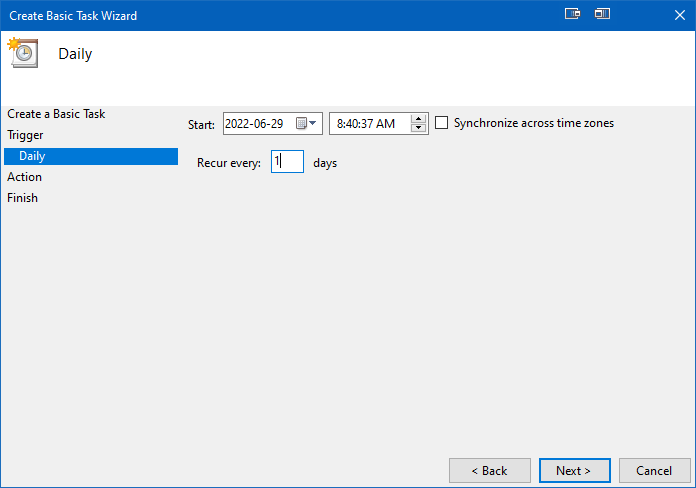
Choose the time that you want the task to run, then click Next. For example: 7:00AM
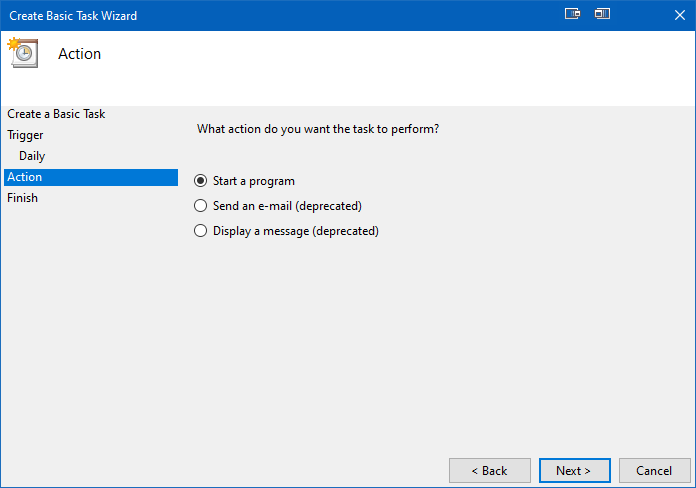
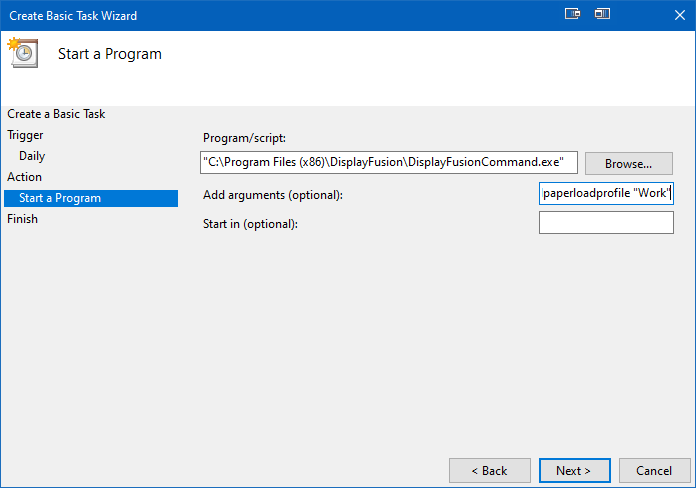
Choose "Start a Program," then click Next.
In the "Program/Script" text box, enter the full path to DisplayFusionCommand.exe. For example: "C:\Program Files (x86)\DisplayFusion\DisplayFusionCommand.exe"
In the "Add arguments" text box, enter -wallpaperloadprofile "Profile Name" then click Next.
Review the settings, then click Finish. The "Action" box should contain something like this: Start a program; "C:\Program Files (x86)\DisplayFusion\DisplayFusionCommand.exe" -wallpaperloadprofile "Sunrise"
Repeat steps 2 through 8 for any other Wallpaper Profiles that you'd like to schedule.