Home  •  DisplayFusion Online  •  Support  •  View this site in English 以简体中文浏览此网站 以正體中文瀏覽此網站
  •  
Binary Fortress Software WallpaperFusion LogFusion ClipboardFusion FileSeek Notepad Replacer
DisplayFusion: Multiple Monitors Made Easy!
 

How Many Monitors Does DisplayFusion Support?

Return to News
July 19, 2012

How many monitors does DisplayFusion support? The short answer is: As many as your video card(s) and display drivers can handle. Note that some cards have more outputs than they can physically enable at one time, which cannot be worked around using software (i.e. many cards have 3 outputs, but only 2 can be enabled at one time). As we'll detail in this post, we were recently able to re-test DisplayFusion with 11 monitors. We've also had customers report that DisplayFusion works well in their 12 monitor setups.

Which DisplayFusion features worked in the 11 monitor setup?

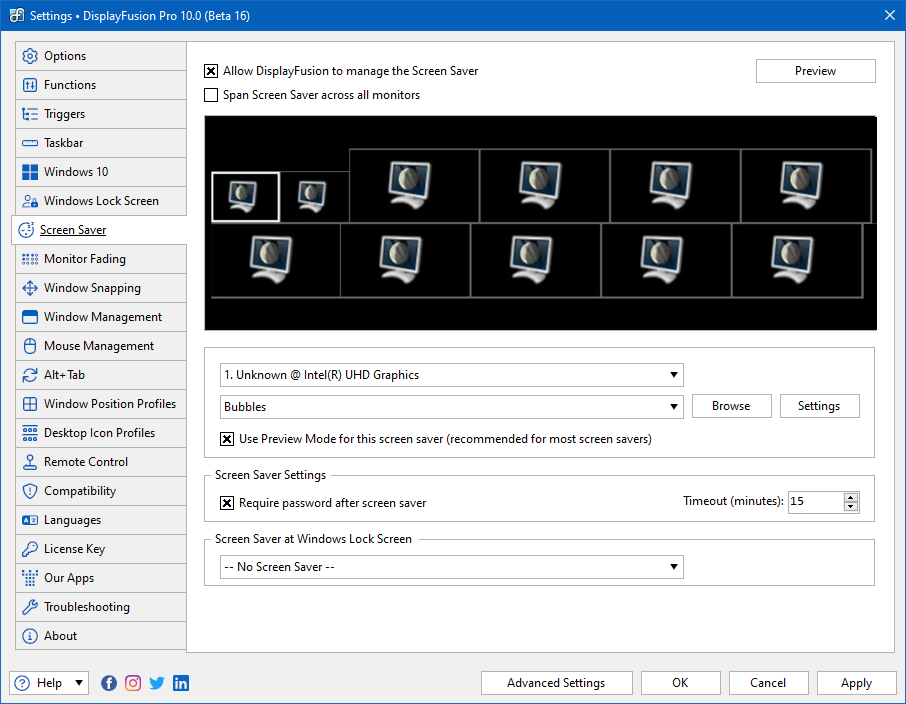
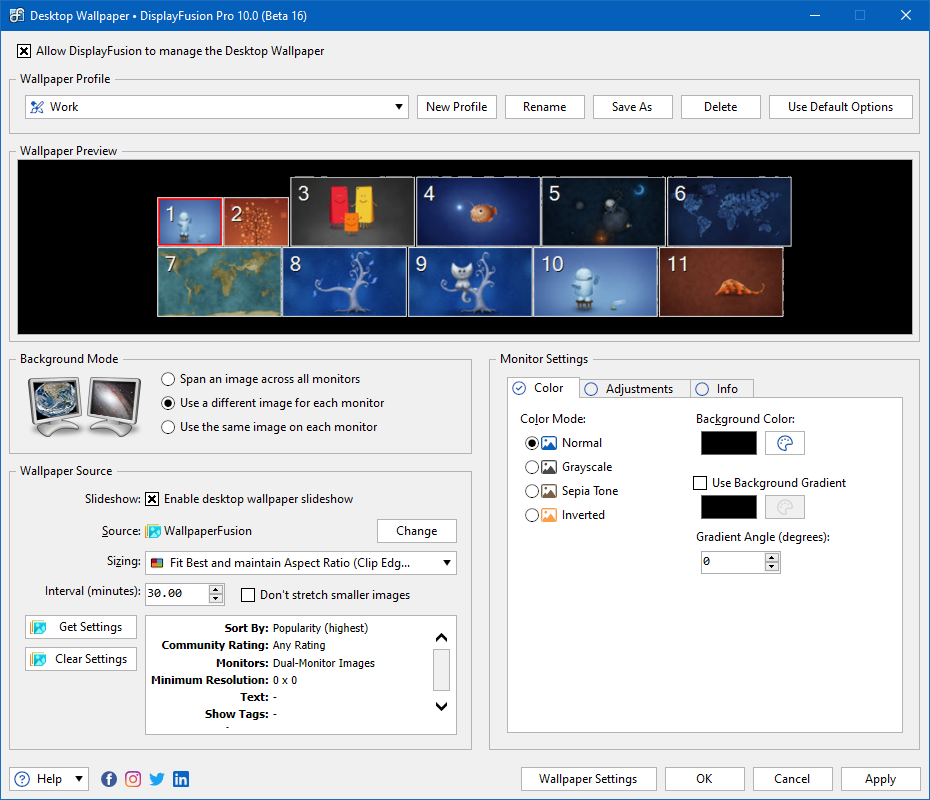
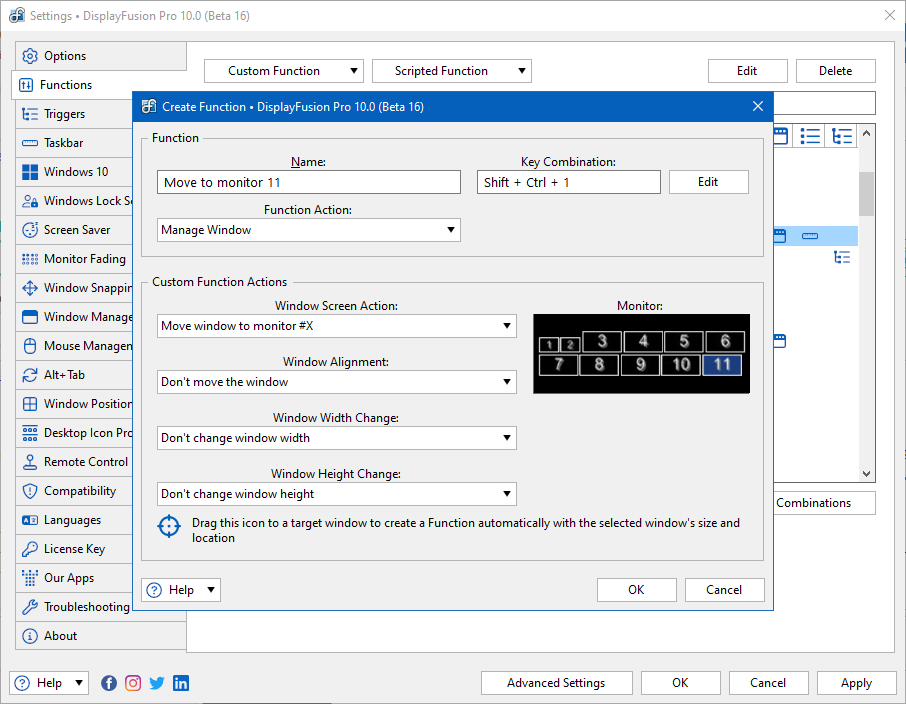
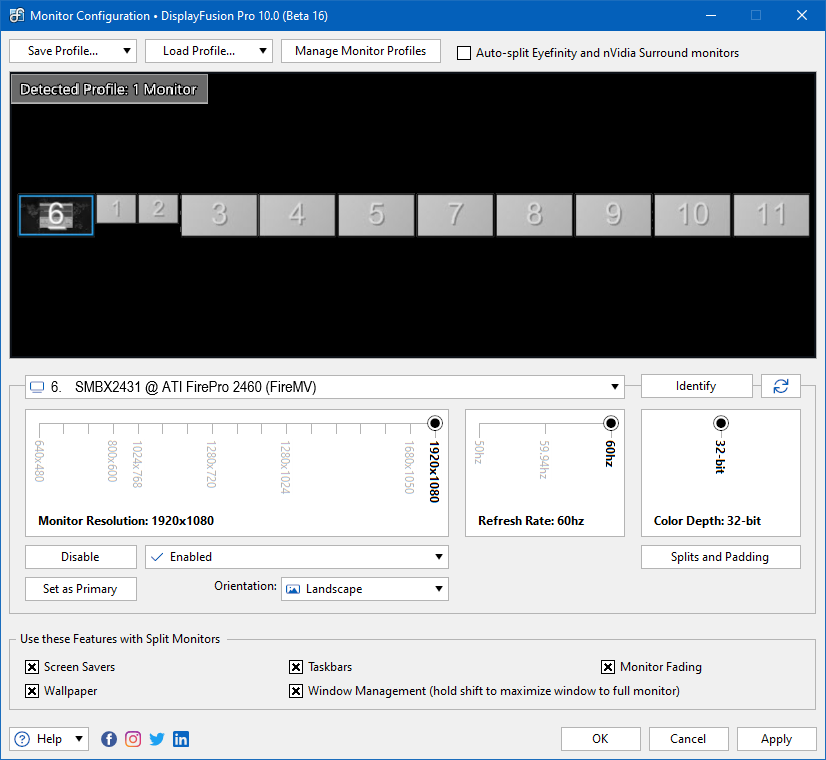
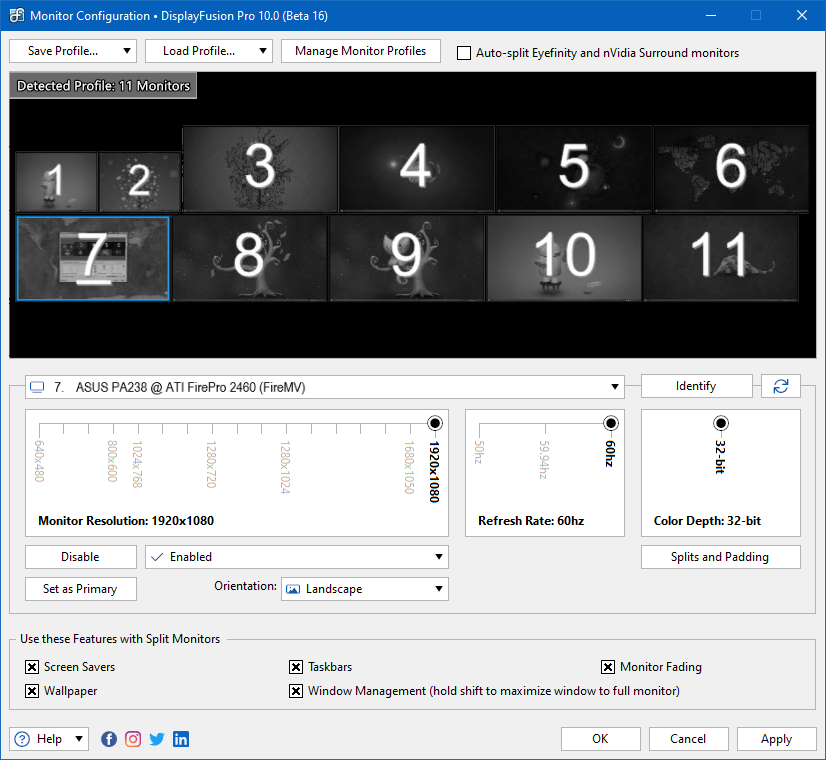
All of the DisplayFusion features worked great in the 11 monitor setup. Certain actions, such as applying the wallpaper settings, or reloading the taskbars take a bit longer than on a 2 or 3 monitor setup, but that's to be expected, as there's a lot more work to be done behind the scenes when handling that many monitors. See the following screenshots for what the various configuration screens look like with 11 monitors attached.


Desktop Wallpaper Configuration


Custom DisplayFusion Functions


DisplayFusion Monitor Configuration: 1 Monitor Profile


DisplayFusion Monitor Configuration: 11 Monitor Profile


DisplayFusion Screen Saver Configuration


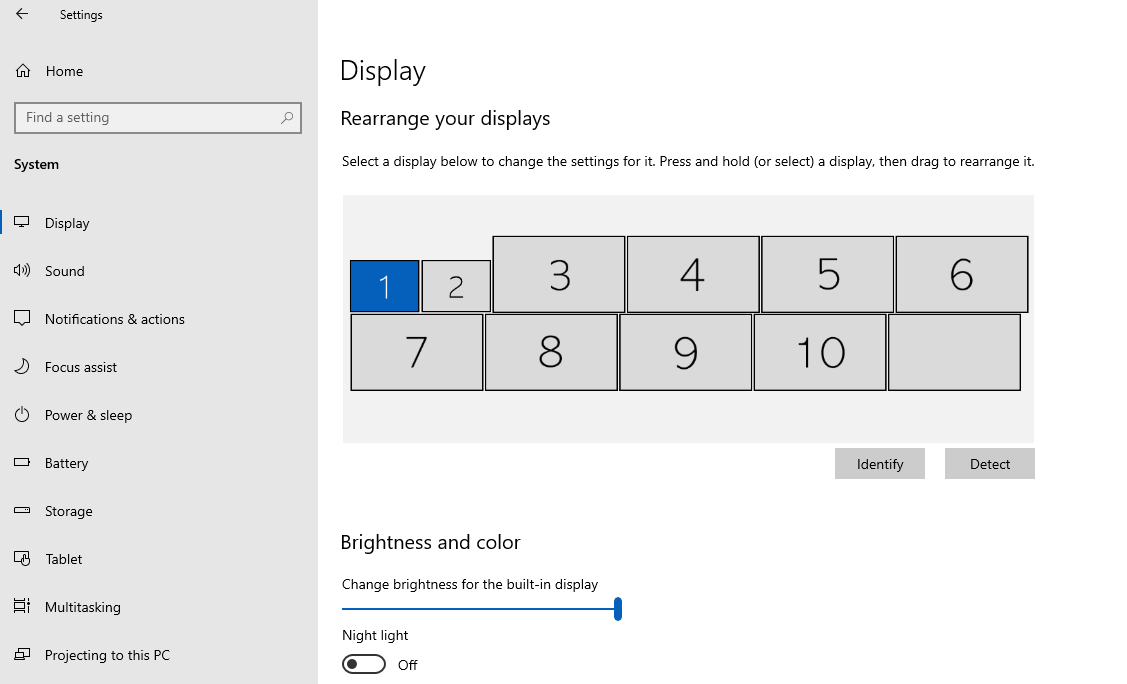
Interestingly enough, there are a couple of bugs in Windows when using this many monitors. The Windows Screen Resolution settings window doesn't put an ID on any monitors with an ID higher than 10. The DisplayFusion Monitor Configuration shows the monitor ID on all monitors, including ones with IDs higher than 10. Additionally, the built-in Windows Screen Savers crash (regardless of whether you configure them using Windows, or DisplayFusion) when running more than 9 monitors. To prevent the Screen Saver crashes from showing up in DisplayFusion, we've added a check that will prevent the Windows built-in Screen Savers from being selected in the DisplayFusion Screen Saver configuration on systems that have more than 9 monitors enabled.


Windows Screen Resolutions Settings

Which DisplayFusion features are really helpful when running 11 monitors?

While all of the DisplayFusion features are great with 2 or more monitors, we found the following features to be especially helpful when using 11 monitors.

Monitor Configuration: The Windows Screen Resolution settings can be a bit cumbersome to use, especially when enabling and arranging many monitors. Many of the steps require you to apply the settings before performing the next step. For example, you can select each monitor to be enabled, but then you must apply the settings before re-arranging them to the correct layout.

The DisplayFusion Monitor Configuration feature not only allows you to enable and arrange the monitors before applying the settings, but it also allows you to save different monitor layouts as Monitor Profiles, so that they can be quickly applied with a few clicks in the future.

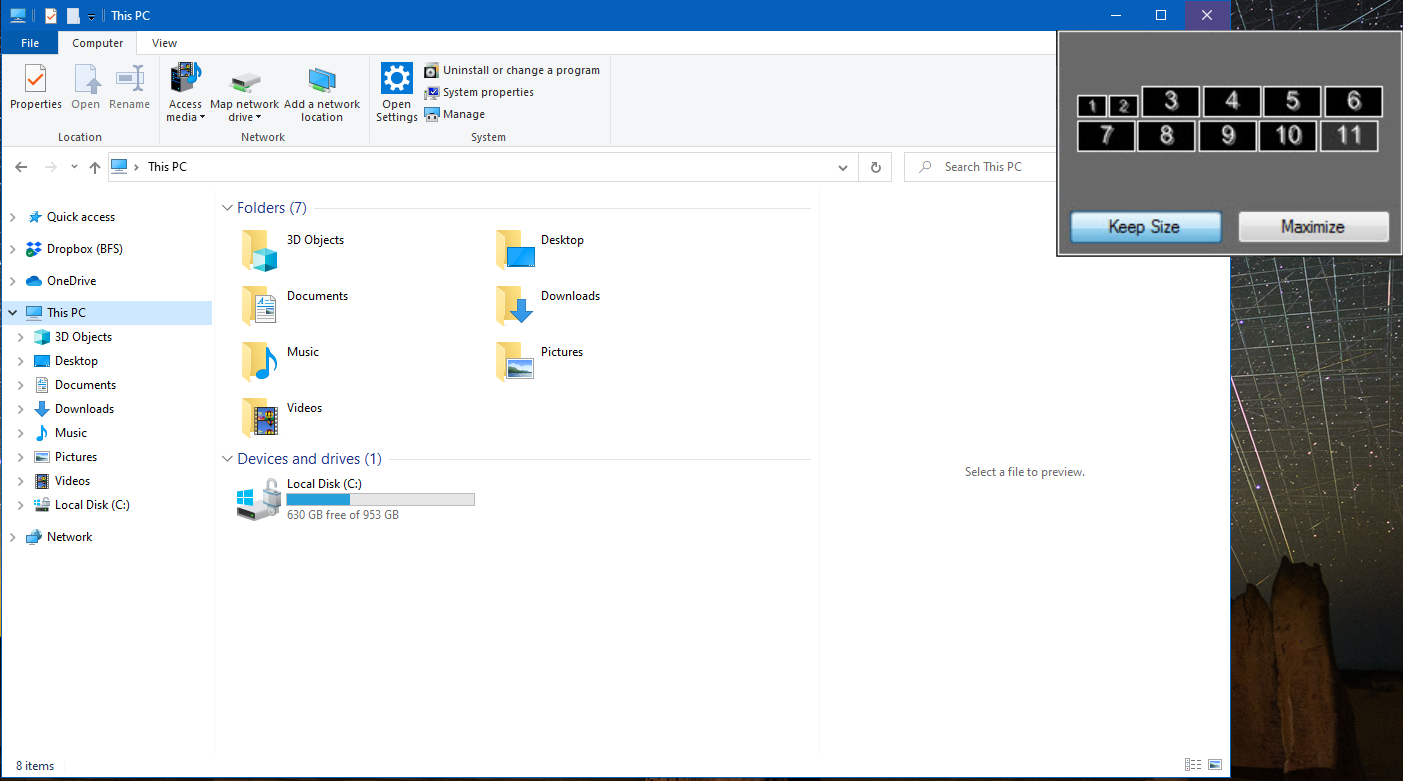
Monitor Selector and Custom Functions: When you've got 11 monitors, being able to specifically select which monitor an application should move to becomes a very handy tool. Using DisplayFusion's Functions, you can achieve this in a couple of ways.

Using the Move Window to Different Monitor Function, which shows a monitor selector, you can choose which monitor the application should move to when running the Function.


Move Window to Different Monitor Function


Alternatively, you can create custom Functions that automatically move the application to a specific monitor when the Function is run, and skip the step of having to choose a monitor each time you want to move the application.

Mirror Monitor/Window Function: When running a system with many monitors, it's entirely possible that you may have monitors located in different physical areas, outside of your viewing range. There are two DisplayFusion Functions that can help in this situation.

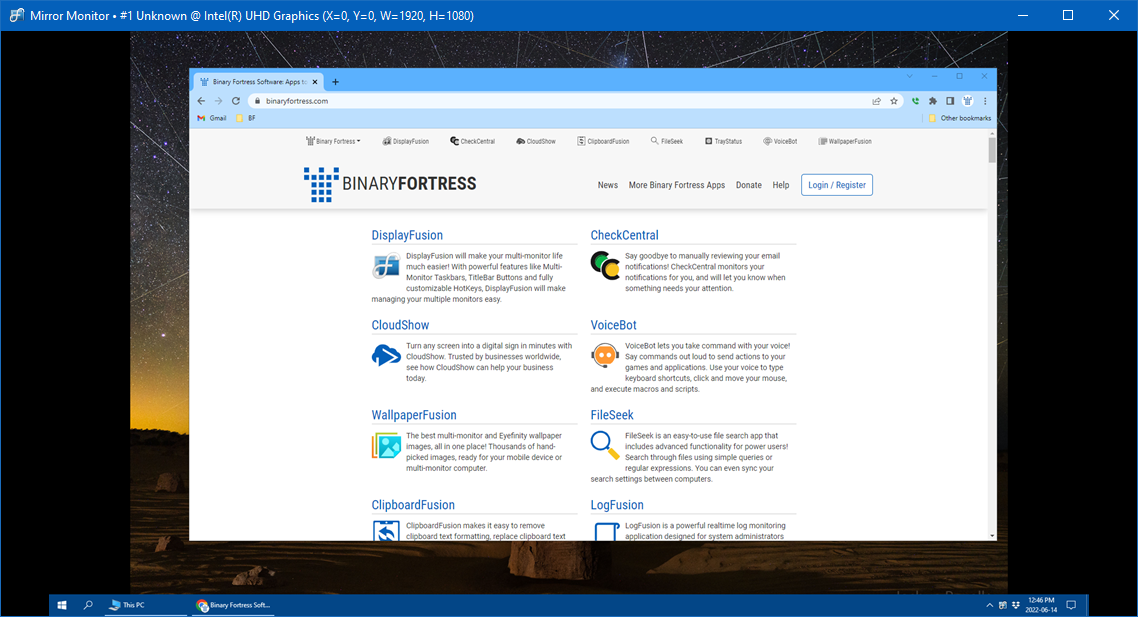
The Mirror Monitor Function will mirror the output of the selected monitor into a separate window that can be resized and moved to any other monitor. The Mirror Window Function will do the same, but it will use the output from the selected application.
Mirror Monitor Function

Feedback

If you've got a setup with 6+ monitors, feel free to leave some feedback in the comments to let us know how DisplayFusion works for you, and which features you find the most useful when running 6+ monitors! As always, if you need any technical support, or have any questions, feel free to contact us.

Comments

Avatar from Gravatar.com
Dave says:
I'm planning to build a personal art project using multiple monitors. I'm not sure if I'll do this in Windows 7 or 8. Not having infinite wall space in my house, I want to make a photo gallery using multiple 24" monitors, that can either cycle through groups of pictures or have certain collection fixed for a while. Screen savers are random things, while I want curated list. Each photo is assigned a monitor, and all monitors change together to the next collection of pictures. Can I do this with your existing software, is this a forthcoming feature and/or do I need to program this myself? Ideally, I'd love to have this controlled by a tablet that normally sits on the wall, giving information about each picture the way a museum display would, but it could be used in wifi mode to allow somone on a couch to browse through collections of images. Note I don't want that interface to allow somone to create collections, that's to be done elsewhere and when.
Oct 9, 2012
Avatar from Gravatar.com
Jon Tackabury says:
@Dave: That sounds like a very interesting project! With DisplayFusion, you can have each monitor display different images from a folder of images. Each monitor can use the same folder, or a different one, and they can be synced to change at the same time or different intervals. The only part it can't do is the remote tablet control. If you had your computer and the primary monitor in a different room, you could manage DisplayFusion from there without anyone seeing what you're doing. If you'd like more in-depth assistance, drop us a line at support@displayfusion.com. Smiley
Oct 9, 2012
Avatar from Gravatar.com
abu groza says:
i read the capability that it can run to 11 monitor, so my question is can it run for 20 or 30 monitor in merged display, thanks and if it different version, how much does it cost

please send me, an email

thanks,
104 days, 8 hours, 37 mins ago
Avatar from Gravatar.com
Keith Lammers says:
@Abu: DisplayFusion can't force the monitors to run as one combined large display, that would need to be supported by the video card hardware. Regarding the features and pricing, you can find the full list at the link below, and the pricing is at the bottom of the page Smiley

http://www.displayfusion.com/Compare/
103 days, 20 hours, 58 mins ago
Avatar from Gravatar.com
Sujin Sukumar says:
I would like to know, if i can display different application on different screens. I have a laptop and 3 monitors. I want to work on the laptop and see different live application on each screens.
79 days, 3 hours, 40 mins ago
Avatar from Gravatar.com
Keith Lammers says:
@Sujin: You should be able to do this. Feel free to give it a try, and if you run into any trouble, please contact us with more details: http://www.displayfusion.com/Support/
78 days, 21 hours, 3 mins ago
Avatar from Gravatar.com
Gary Siegle says:
I have an AMD Radeon HD 6870 video card, with 2 digital ports, 1 HDMI port, and 2 mini-ports.

For now, exclude both mini-ports, which supports 3 monitors per port (supposedly if using a monitor hub).

Hence, I would like to utilize the remaining ports for three monitors instead of the 2-monitor default limitation.

As indicated, therefore, by comments in your first paragraph, your program should be able to circumvent the 2-monitor limitation, thus allowing me to display said monitors concomitant of my video card.

Please advise accordingly... Kind regards...
76 days, 6 hours, 43 mins ago
Avatar from Gravatar.com
Keith Lammers says:
@Gary: Unfortunately that's a hardware limitation that cannot be worked around using software. I've updated the first paragraph to clarify that a bit better.

Thanks!
75 days, 21 hours, 35 mins ago
Avatar from Gravatar.com
James Dillard says:
I'd like more info on the use of a tablet, and the possibility of extending DF onto my laptop screen.

66 days, 19 hours, 19 mins ago
Avatar from Gravatar.com
Keith Lammers says:
@James: We'd be happy to provide more info. Could you email us with some more details on what you're looking to achieve?

Thanks!
64 days, 19 hours, 0 mins ago
Avatar from Gravatar.com
J Powl says:
I dont understand how to add multiple (more than 2) monitors. Should I buy multiple video cards or one where I can split the USB feed with a hub? Or is there a better way. Also, ar there video cards/companies you can recommend to make I can get passed any hardware issues? thanks
1 day, 1 hour, 18 mins ago
Avatar from Gravatar.com
Keith Lammers says:
@J Powl: You can add additional video cards if your motherboard and power supply can support them. Alternatively, there are some cards that have 4 outputs (like the ATI FirePro cards), or you can certainly do USB video adapters (http://www.displaylink.com/shop/adapters), though they aren't good for gaming.
22 hours, 9 mins ago

Leave a Comment

Name:
Email Address:
Comment:
No HTML is allowed.
Create Link: [URL]http://www.google.com[/URL]
Security Question:
Please enter this phrase into the box below